If you’re searching for how to remove remote management from iPad, the right solution depends on how the device was enrolled in Mobile Device Management (MDM). You may be able to delete a profile in Settings, ask an administrator to unenroll the device, or have the organization release it from Apple Business Manager. For supported devices you own or are authorized to manage, Tenorshare 4uKey also offers an MDM bypass feature. Here’s how these options work and when to use each one.
Part 1. 4 Ways to Remove Remote Management from iPad
Not every MDM restriction can be removed in the same way. Some iPads allow users to delete their management profiles, while organization-owned devices may require changes from an IT administrator. Identify your device’s enrollment status first, then choose the method that matches your situation.
Method 1. Remove the MDM Profile from iPad Settings
If the iPad has a user-removable management profile, you can delete it directly without connecting to a computer. This is usually the quickest option for personally owned devices enrolled in an organization or service.
Steps to Remove the Profile:
- Open Settings on your iPad.
- Go to General > VPN & Device Management.
- Select the management profile.
- Tap Remove Management or Delete Profile, if available.
- Enter the required passcode or password.
- Follow the onscreen instructions to finish.
What If the Removal Option Is Missing?
The organization may have configured the profile so users cannot remove it. If the removal option is unavailable or requires administrator credentials, you may need the administrator’s assistance or another supported removal method. For more details, see our guide on why you can’t remove an MDM profile and the common causes behind this restriction. Keep in mind that deleting the profile may also remove associated managed apps, accounts, VPN settings, and restrictions.
Method 2. Remove the iPad Through the MDM Admin Console
If you manage the iPad through a company or school, an administrator can usually remove it from the organization’s MDM service. This method is suitable when a device is being reassigned, retired, or transferred to another user.
Steps for an MDM Administrator:
- Sign in to the organization’s MDM management console.
- Open the device inventory or device management section.
- Search for the iPad using its serial number or device name.
- Open the device record and choose the available Remove, Unenroll, or equivalent management action.
- Confirm the action and follow the platform’s instructions.
- If the device is being transferred or retired, check whether it also needs to be released from Apple Business Manager or Apple School Manager.
The exact menu names vary across platforms such as Microsoft Intune, Jamf Pro, and Mosyle. Removing a device from an MDM console does not necessarily release it from Apple’s automated enrollment system, so check its Apple enrollment assignment separately.
Method 3. Release the iPad from Apple Business Manager or Apple School Manager
An iPad assigned through Apple’s Automated Device Enrollment (ADE) can display Remote Management again after a factory reset. This happens because the device is still associated with an organization, even if its local data and settings have been erased.
If the organization no longer needs to manage the iPad, an authorized administrator can release it from Apple Business Manager or Apple School Manager.
Steps to Release an iPad:
1. Sign in to the organization’s Apple Business Manager or Apple School Manager account.
2. Open the device management section.
3. Search for the iPad using its serial number.
4. Select the correct device and review its assignment status.
5. Choose the available Release from Organization action and confirm, if the organization intends to permanently remove the device from its account.
6. Follow the required erase and setup process.
Important: Releasing a device is different from simply changing its MDM server assignment. A released device is no longer assigned to that organization through the relevant Apple enrollment system. This action should only be performed by an authorized administrator with the organization’s approval.
Method 4. Use Tenorshare 4uKey to Bypass MDM on iPad
If you own the iPad or have permission to manage it but cannot remove its profile through Settings, a dedicated MDM removal tool may offer another option. Tenorshare 4uKey includes a Bypass MDM feature designed to remove supported MDM restrictions without requiring the original MDM password.
Key Features of 4uKey:
Unlock iPhone Passcode: Easily unlock iPhone/iPad/iPod without passcode
iCloud Lock Removal: Remove activation lock without previous owner [without jailbreak]
Apple ID Unlock: Remove Apple ID without a password, sign out no data loss
MDM Bypass: Safely remove MDM profile without passcode
Turn Off Find My iPhone: Easily disable Find My iPhone without Apple ID
Screen Time Passcode Bypass: Remove passcode without losing any data
Find Stored Passwords: View Apple ID and WiFi passwords
How to Use 4uKey:
Step 1. Download and Install 4uKey
https://images.tenorshare.com/guide/4ukey/unlock-locked-screen-interface.webp?v=1

Step 2. Connect iPhone to Computer

https://images.tenorshare.com/guide/4ukey/connect-your-device-to-4ukey.webp

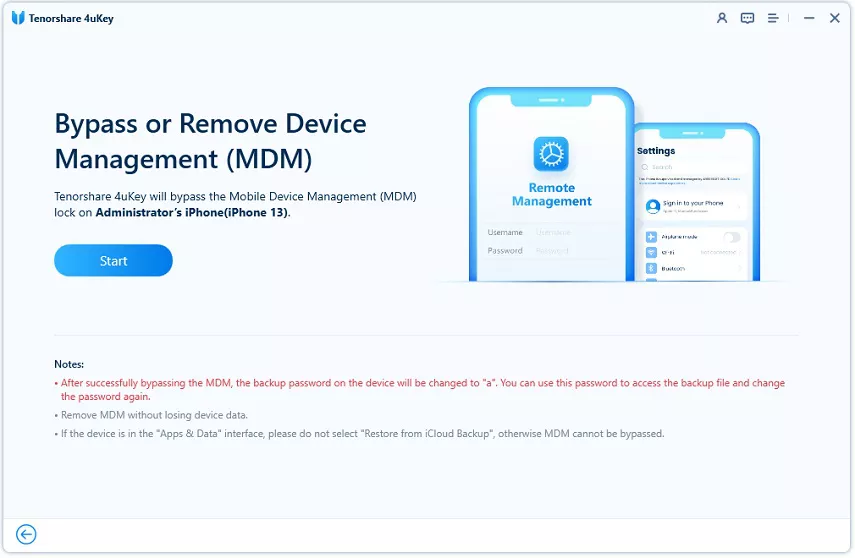
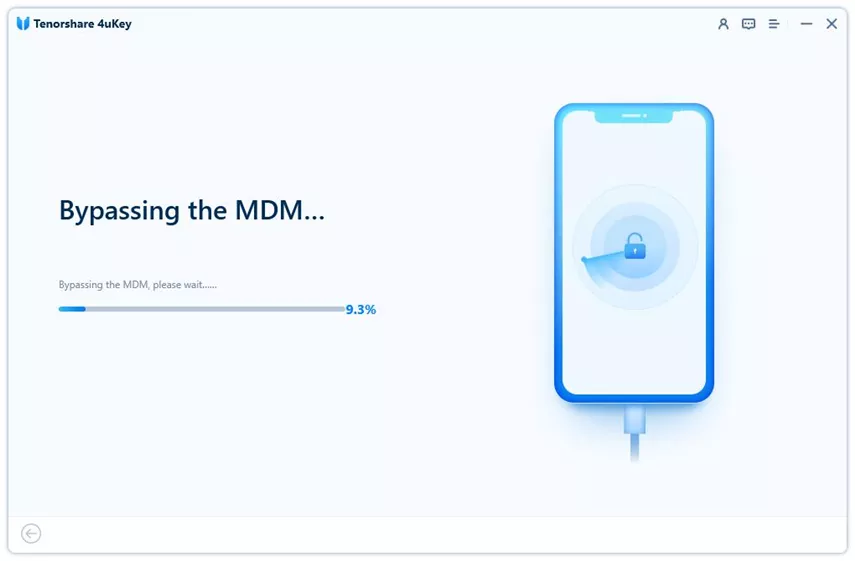
Step 3. Start Bypassing MDM
https://images.tenorshare.com/guide/4ukey/start-to-bypass-mdm-button-on-4ukey.webp

https://images.tenorshare.com/guide/4ukey/bypassing-remote-management-lock-on-4ukey.webp
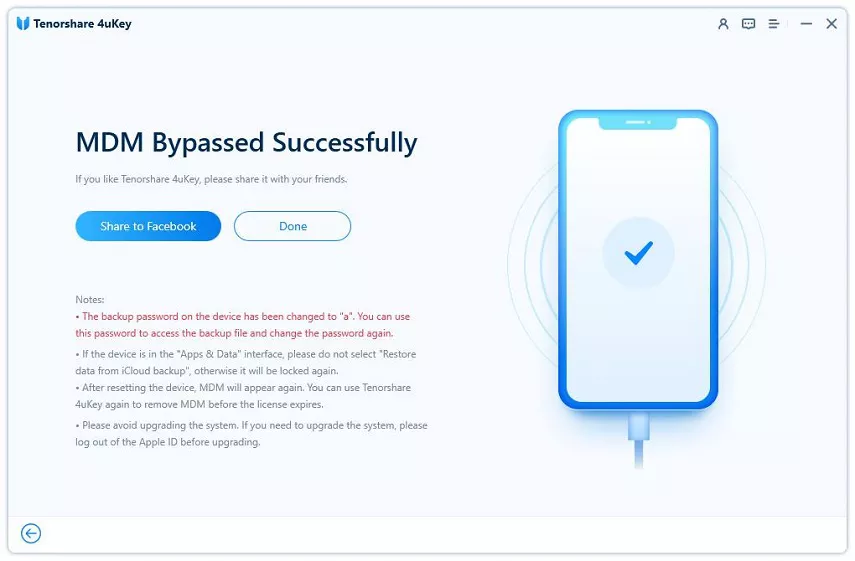
Step 4. Bypassed MDM Successfully
https://images.tenorshare.com/guide/4ukey/successfully-bypassed-mdm-lock-with-4ukey.webp
Part 2. What to Know Before Removing Remote Management from iPad
Removing MDM is not always as simple as deleting a profile. The enrollment method, device ownership, and organization settings can all affect what happens next. Consider these points before choosing a removal method.
- MDM Profiles and Automated Device Enrollment Are Different
An MDM profile contains management settings such as Wi-Fi configurations, VPN connections, app restrictions, and security policies. Some profiles allow users to remove them directly from Settings.
Automated Device Enrollment works differently. Organizations use Apple Business Manager or Apple School Manager to assign eligible devices to an MDM service during setup. Erasing the iPad does not automatically remove this assignment, which is why the Remote Management screen can return after a reset.
- Will Factory Resetting an iPad Remove MDM?
A factory reset erases local content and settings, but it does not necessarily remove the device’s organizational enrollment. If Remote Management still appears after restoring your device, see our guide on how to remove Remote Management after a factory reset for additional solutions.
| Device management status | What happens after a reset? |
| User-removable MDM profile | The local profile is erased with the device. |
| Organization-managed MDM profile | The device may receive management again depending on its enrollment configuration. |
| Assigned through Automated Device Enrollment | Remote Management may appear again during setup. |
| Released from the organization | The device is no longer assigned through that organization’s automated enrollment. |
If your goal is to permanently stop the Remote Management screen from appearing during setup, confirm the device’s enrollment status rather than relying on a factory reset alone.
- What Happens to Your Data and Managed Apps?
Removing MDM can affect both device settings and the services provided by an organization. Before proceeding, consider the following:
- Managed apps: Apps installed or controlled by the organization may be removed.
- Work accounts: Managed email, calendars, and other organization accounts may stop working.
- Network settings: Configured Wi-Fi, VPN connections, and certificates may be deleted.
- Personal files: Deleting a profile does not necessarily erase all personal data, but a factory reset or erase-based removal process will delete local content.
Back up important personal data before performing a reset or another operation that erases the iPad.
FAQs about How to Remove Remote Management from iPad
Q1. Can I remove Remote Management from an iPad without a password?
It depends on the enrollment method. A user-removable profile may not require the original MDM administrator password, but a protected profile can require administrator credentials. A supported third-party tool may offer another option for eligible devices.
Q2. Can Apple remove Remote Management from my iPad?
Apple generally cannot release an organization-managed device on behalf of the organization. The company or school that enrolled the iPad must make the necessary changes through its management system and Apple enrollment account.
Q3. How can I tell if my iPad is supervised?
If you can access Settings, look for a message indicating that the iPad is supervised or managed by your organization. You can also check Settings > General > VPN & Device Management for installed management profiles.
Q4. Can a secondhand iPad be permanently removed from MDM?
Yes, if the original organization agrees to release it and completes the required changes. Ask the seller to contact the organization before purchasing or keeping the device. A factory reset alone cannot guarantee that an automatically enrolled iPad will become a personal device.
Q5. Does removing MDM also remove iCloud Activation Lock?
No. MDM and iCloud Activation Lock are separate security mechanisms. Removing an MDM profile does not automatically remove the Apple Account association or Activation Lock. The previous owner may need to remove the device from their account separately.
Conclusion
The best way to remove Remote Management from an iPad depends on how it was enrolled. You can delete a removable profile through Settings, unenroll the device through an MDM admin console, or ask the organization to release it from Apple Business Manager or Apple School Manager. For supported devices you own or are authorized to manage, Tenorshare 4uKey provides another MDM bypass option. Understanding the difference between device-level management and organizational enrollment will help you choose the right solution and avoid seeing the Remote Management screen again.