
Photo: Unsplash
The number of AI tools competing for the same workflow has gotten ridiculous. Open any “best photo enhancer” roundup and you will see twenty entries, most of them launched within the last eighteen months, all promising to fix what the last twenty already fixed.
The actual situation on the ground is simpler than the marketing suggests. Four tools, between them, cover almost every practical job: enhancement, restoration, generation, retouching, at the level of quality that matters for paid client work and good enough for everything else. Picking among the four is a question of where you already work and how much friction you are willing to tolerate.
This guide breaks down those four tools and what each is genuinely good for, rather than what the homepage claims it does.
What “AI photo enhancement” actually covers
Worth getting precise, because the category sprawls.
Enhancement, in the loose sense, includes anything that improves a photograph without the user giving step-by-step instructions: upscaling small images, sharpening soft ones, recovering detail in shadows, cleaning grain from low-light shots, repairing scratches on old prints, removing watermarks, swapping backgrounds, and pushing a base image toward a stylized look. A few years ago each of those tasks was a separate tool. The models behind today’s offerings have collapsed them into a click or a prompt.
What distinguishes one tool from another is mostly three things. The breadth of jobs it covers in a single workflow. How well it handles hard cases: faces, fabric, edges, text. And the time-to-output, which is the variable that quietly decides which tool you actually open the third week of owning it.
The shortlist below is sorted by who each tool serves best, not by alphabetical order or release date.
1. AIEnhance.io
Best for: people who want everything in one browser tab, without subscriptions for capabilities they will only use once.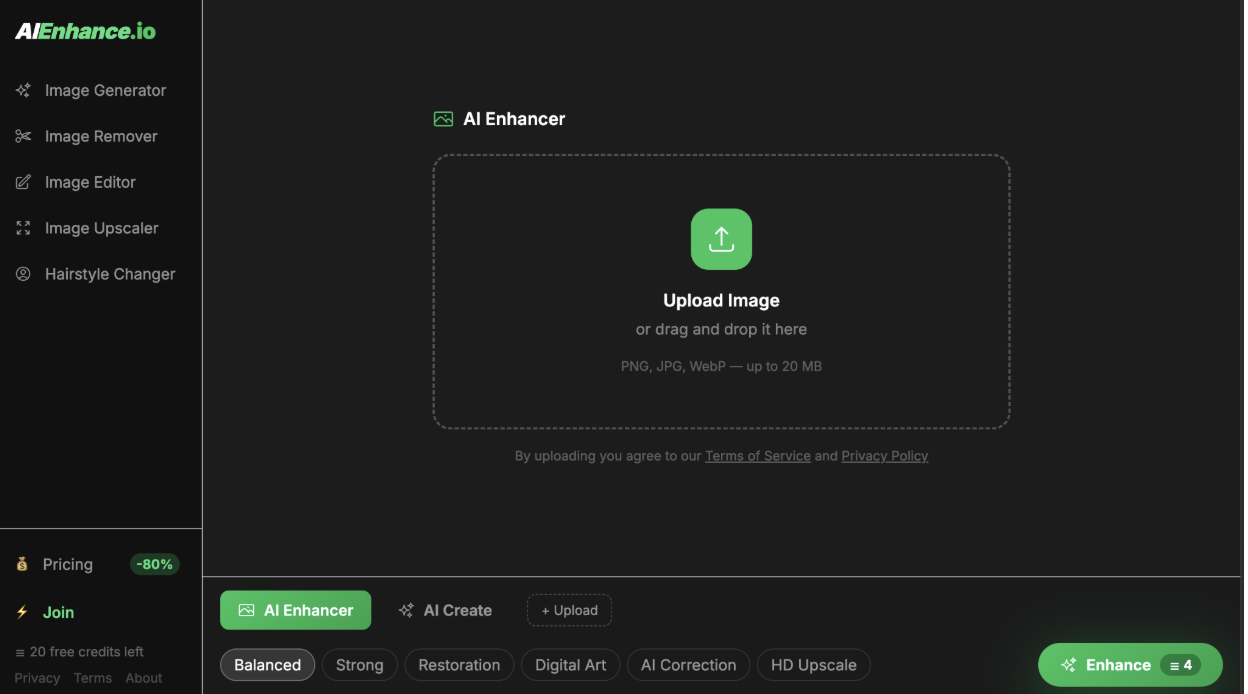
AI Enhance is a web-first toolkit that bundles enhancement, restoration, upscaling, watermark removal, object removal, background swap, hairstyle change, and a full text-to-image and image-to-image generator into one workspace. Under the hood it runs on Real-ESRGAN, GFPGAN, Stable Diffusion XL, FLUX, and Google’s Gemini image model, but the surface is plain. Upload a file, pick a mode, get the result.
The pricing model is the part that matters most for newcomers. Twenty credits are free without a signup; another twenty land in your account if you create one. That is enough to actually finish a job, restore a batch of family photos, clean up a set of product shots before deciding whether to commit. Paid plans start at $9 a month for 300 credits, with annual tiers offering meaningful discounts.
The interesting cases where it tends to outperform alternatives are the messy ones: recovering detail in low-resolution phone screenshots, cleaning faces in group shots taken under bad light, and removing arbitrary objects without leaving the kind of smear that gives the edit away.
For the everyday workflow, adjusting exposure, fixing color, tightening composition the in-browser AI image editor exposes aspect ratio control, prompt upsampling, and a side-by-side preview without burying any of it in submenus. The defaults work. The advanced controls exist when you want them. That balance is harder to get right than it looks, and most competitors fail at one end or the other.
If you have one slot in your stack for a generalist AI photo tool, this is the one most reviewers underrate.
2. Topaz Photo AI
Best for: photographers who care about preserving real texture rather than inventing new pixels.
Topaz is the closest thing the industry has to a specialist’s tool. Their Sharpen, DeNoise, and Gigapixel models are unusually conservative: they aim to recover what the lens captured rather than synthesize a more photogenic version of the scene. For wildlife, sports, landscape, and any output that will be printed at A3 or larger, that conservatism matters.
The trade-offs are real. Topaz is a desktop application, macOS or Windows, with a one-time license rather than a subscription. Output is excellent on RAW files and demanding cases, but the interface assumes some photography background and is not what you hand to a non-technical colleague. Mobile support is nonexistent.
For studios working with confidential client material, the fact that everything runs locally with no cloud upload is its own argument. For social-media output where invented pixels are acceptable, the same conservatism means you may be paying for headroom you do not use.
3. Adobe Firefly
Best for: people already paying for Creative Cloud.
Firefly is Adobe’s generative model, and the reason it matters is integration. Generative Fill inside Photoshop converts a lasso-and-fill operation into a one-prompt action. Generative Expand pushes a crop outward and invents plausible content for the new edges. None of those features are novel as capabilities: open-source models have done equivalent work for some time. What Firefly offers is having it embedded inside the application you already use, with layer history and selection tools intact.
The output quality is strong on commercial-style imagery and on text rendering, two areas where competing models historically struggled. Firefly is also trained on Adobe Stock and openly licensed content, which removes a real IP concern for anything destined for paid client work.
The price of entry is the catch. Realistic use of Firefly requires a Creative Cloud subscription, which starts around $23 a month per app and climbs to fifty-plus for the full bundle. For users who are not already paying that, the value math gets worse than a dedicated tool.
4. Canva AI
Best for: non-designers producing social content at speed.
Canva’s AI tools have improved meaningfully and, for users whose output is social posts, slide decks, and quick visuals, the platform is now a credible single-tool answer. Text-to-image, magic edit, background remover, and style presets all live inside the standard Canva interface, which is one of the few in this list that a casual user can pick up without instruction.
The depth is the limitation. Generation models are fine for stylized illustrative output but lag dedicated tools on photoreal results. Fine-grained prompt control, aspect ratio overrides, and post-processing are all thinner than a power user expects. The free tier is genuinely usable, which is rare in this category, but the ceiling arrives quickly.
For its target audience like small business owners, social media managers, creators chasing a clean asset in five minutes, Canva is the right call. For anything beyond that, it is a stepping stone rather than a destination.
How to actually choose
The cleanest framing is this: pick the tool that matches where your workflow already lives. If you want web-first, all-in-one, and credit-based pricing without subscription lock-in, AIEnhance is the most efficient pick. If you do serious retouching as paid work, Topaz earns the desktop slot. If you are already inside Adobe, Firefly is effectively free. If your output is social and your patience for software is low, Canva is fine.
The expensive mistake is paying for all four. Most workflows only need two tools, it’s a web-based generalist plus one specialist for edge cases, and the difference between an optimized stack and an over-subscribed one runs fifty to a hundred dollars a month for the kind of user who reads guides like this one.
The good news, after a decade of this category being dominated by a single subscription, is that the eighty-percent tool exists, runs in a browser, and costs less than a single fast-food lunch per month.